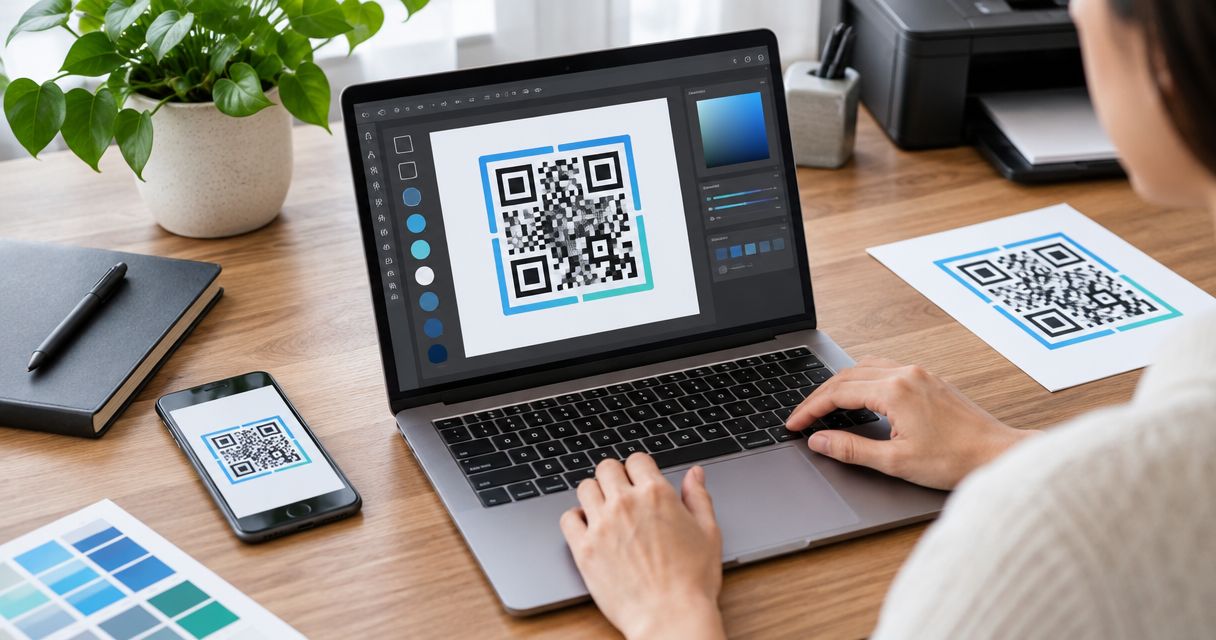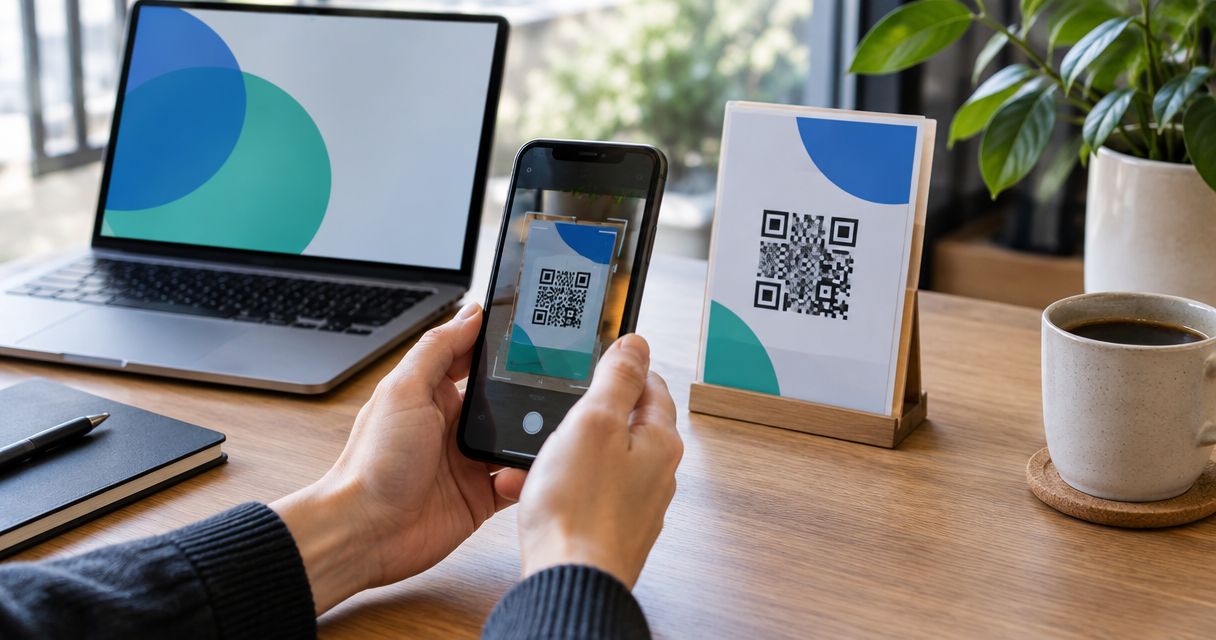

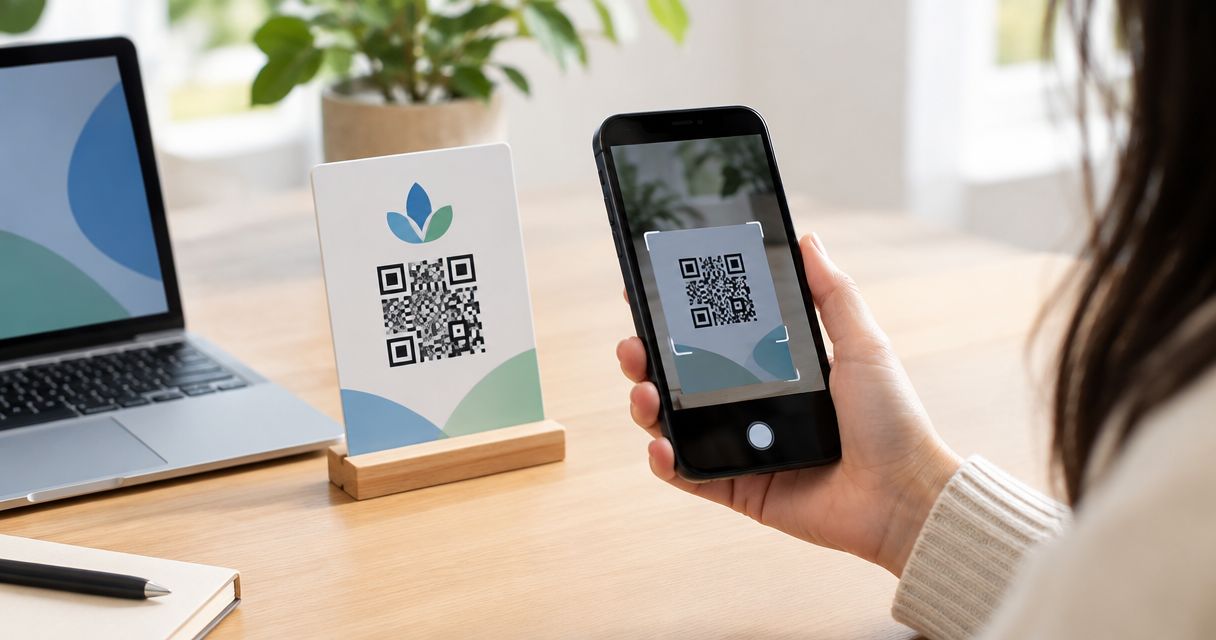
A QR code with logo won’t scan when the artwork hides essential parts of the code, the contrast is weak, the clear border is missing, or the finished code is too small or blurred for the camera to read. Fix the underlying code and its placement first; changing the destination link won’t repair an unreadable printed symbol.
- A QR code with logo needs readable patterns, clear contrast, and an unobstructed border—not just recognizable branding.
- Remove the logo temporarily to distinguish artwork interference from a problem with the original QR code.
- Qurbo turns logos and artwork into the QR itself; check the finished placement before publishing or printing.
- Test the exported file and the actual material, not just the enlarged design preview.
Why won’t a QR code with a logo scan?
A logo can cover information the camera needs, but it is not the only suspect. A damaged export, crowded layout, reflective finish, or inaccessible destination can produce a similar complaint.
For designers who want the artwork to become the code rather than sit over it, Qurbo offers that approach. Qurbo is for designers who want their logo or artwork to become the QR itself. The finished placement still needs checking.
Use this sequence to isolate the problem before changing the design:
- Test the original. Scan the code before adding the logo or placing it in the layout. If it fails, start with the source file.
- Remove the overlay. If the original scans but the branded version does not, the logo treatment is interfering.
- Restore the border. Move text, graphics, and background patterns away from the code’s clear outer margin.
- Check the export. Compare the design file with the actual exported asset at its intended size.
- Test the placement. Scan the printed or displayed version from the position your audience will use.
- Check the destination. If the phone recognizes the code but the page fails, troubleshoot the link rather than the artwork.
Keep the working original beside each revision. Change one design variable at a time so you can identify what fixed the failure.
Why this matters
A QR code has two jobs: remain readable and take someone somewhere useful. A recognizable logo does not guarantee the first job, and a successful scan does not guarantee the second.
For a 2026 print project, approve the QR in the finished layout—not as a separate, enlarged asset. A code that works on your monitor still needs checking on the card, label, poster, or other material you intend to distribute.
Treat scanning as part of design approval, not as a check after production. Keep the approved destination and the approved artwork together in the project handoff.
Is the logo covering something the camera needs?
QR codes contain structured patterns, including the large square position markers near the corners. Covering those patterns or modifying them as decoration can prevent detection. A centered logo can also hide too much encoded information.
Error correction helps recover damaged information within limits. It does not make every overlay safe, and it does not replace the need for a readable border, sufficient contrast, or a suitable finished size.
There are different ways to combine branding and a QR code. Choose the approach deliberately rather than treating every branded treatment as interchangeable.
| Approach | Best for | Advantage | Limitation to check |
|---|---|---|---|
| Logo overlay | Adding a separate brand mark to a conventional code | Keeps the logo visually distinct | The overlay can obscure encoded information |
| Artwork as QR | Making the artwork part of the code’s appearance | Connects the image and scanning element | The finished design still needs scan checks |
| Unmodified code | Establishing a troubleshooting baseline | Removes artwork changes from the diagnosis | Does not include the intended branded treatment |
Start with the unmodified code when diagnosing a failure. Once it scans, reintroduce the branded treatment and check again. Do not keep enlarging the logo to solve a visibility problem if that makes the code unreadable.
Check the border before rebuilding the artwork
A standard QR code needs a quiet zone: a clear margin around all sides. The standard minimum is 4 modules, where a module is one small square in the code’s grid. This is not the same as a fixed margin measured in millimeters.
Text, a decorative frame, another illustration, or a patterned background can intrude into that space. The code may look separate to a person while still being difficult for a camera to isolate.
- Preserve the clear margin around the entire code.
- Keep the scan instruction outside that margin.
- Do not crop the margin when exporting or placing the asset.
- Give a code on a busy background its own clear area.
If the source file scans but the final layout does not, inspect the border first. It is easy to lose during cropping, masking, or placement inside a tight design component.
Why scan reliability varies
Your QR code’s readability depends on the whole placement, not just the logo. These are the main variables to inspect in a 2026 design review:
- Artwork interference. Overlays and decorative changes can obscure information or recognition patterns.
- Contrast. Similar lightness between the code and its background makes the pattern harder to distinguish.
- Finished size. A code that looks clear when enlarged can lose readable detail at its actual placement size.
- Export quality. Blur, compression, distortion, and rough resizing can change the edges of the pattern.
- Surface and position. Reflections, folds, curves, and awkward viewing angles can interrupt what the camera sees.
Do not compensate for every failure by making the code darker or larger. Identify the failing variable first; otherwise, you can change the layout without removing the real obstruction.
Contrast: check lightness, not just brand colors
Dark code elements on a light background are the straightforward starting point. Two colors can look different as brand colors while providing weak light–dark separation.
Temporarily replace the branded colors with a dark-on-light treatment. If that version scans and the colored version does not, revise the color pairing. Avoid relying on the surrounding page color when the QR asset has a transparent background.
Size: inspect the actual placement
There is no single finished size that guarantees scanning in every situation. Code density, camera distance, printing, and surface conditions all affect readability.
Place the exported QR at its intended dimensions before testing. A successful scan from a zoomed-in preview does not approve a smaller printed version. If the code contains a long direct destination, compare it with a shorter encoded destination while keeping the other test conditions consistent.
Export: keep the grid intact
Do not stretch the QR to fit an available space. Preserve its proportions and inspect the exported file for softened edges or missing detail.
Use a vector export when your generator provides one and your production workflow supports it. If you use a raster image, check the actual file at the final placement size rather than assuming the design application's preview represents the output.
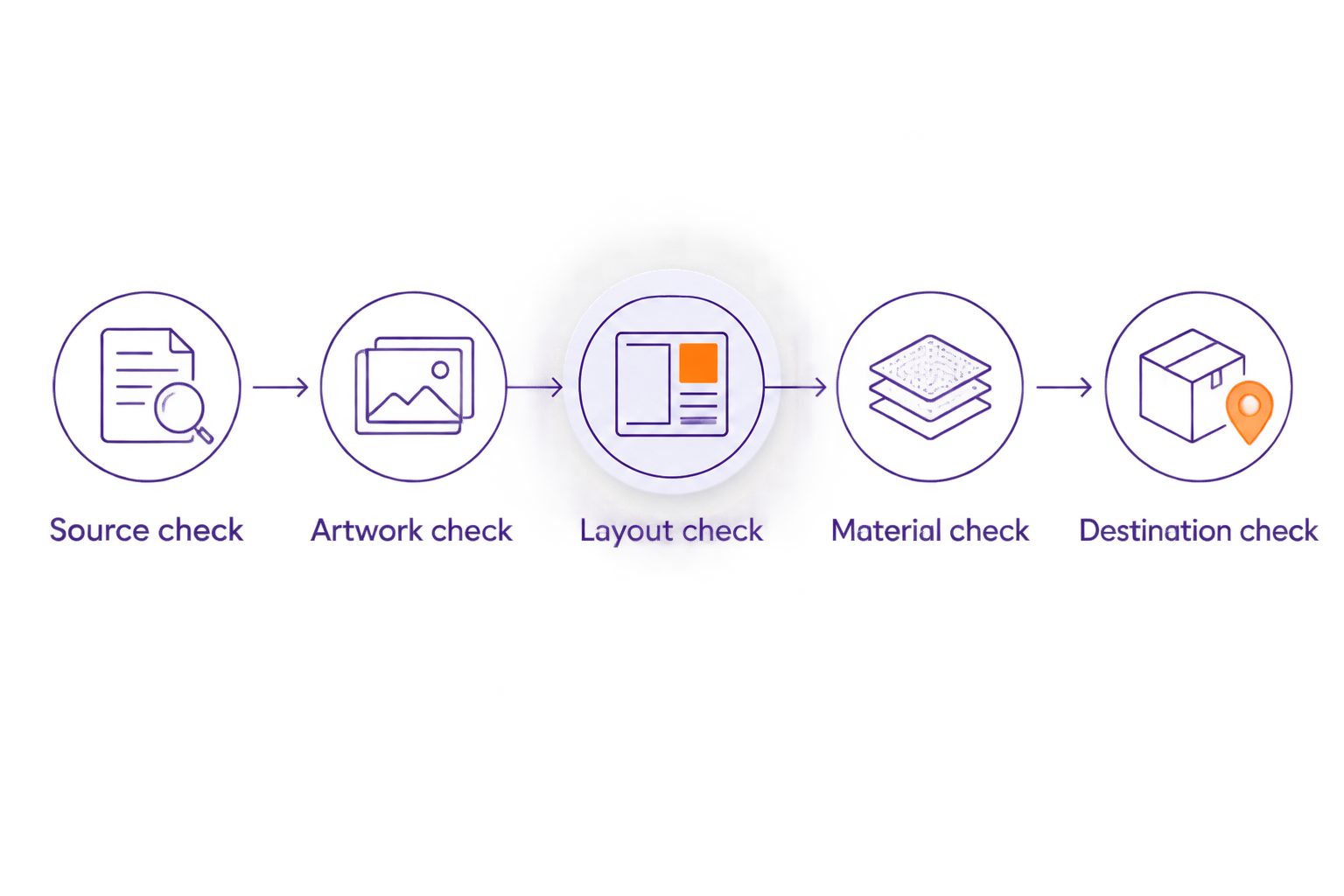
How do you test a QR code with a logo before printing?
Use a short approval sequence that moves from the source to the finished object. Each stage answers a different question; skipping straight to the final print makes a failure harder to diagnose.
- Source check. Confirm that the original QR opens the intended destination before placing it into your design.
- Artwork check. Test the branded version separately to identify interference from the logo or visual treatment.
- Layout check. Scan the exported layout at its intended size, with its final background and nearby copy.
- Material check. Print a proof and test it on the intended surface, including folds or curves where relevant.
- Destination check. Confirm that the opened page is correct, usable on a phone, and accessible to the intended audience.
A 2026 approval record should identify the exported file and the destination that passed your check. That gives the designer and the person publishing the material a shared reference.
Test with different phones rather than relying on the device used during design. Include ordinary viewing conditions: the lighting, distance, and handling someone will encounter when using the material. Record failures instead of averaging them away.
Check the physical obstruction
A fold through the code is not a link problem. Neither is glare from a glossy finish or a curve that prevents the camera from seeing the full pattern clearly.
Move the placement to a flatter, less obstructed area and test again. Keep essential patterns away from seams, cut lines, and edges where the printed result can differ from the flat artwork.
Should you rebuild the QR or fix the existing design?
Fix the smallest confirmed cause first. Restore a cropped border, remove an oversized overlay, or replace a blurred export before rebuilding the entire asset.
Rebuild when the original is unavailable, the code itself is damaged, or the intended visual treatment requires a different creation approach. Do not promise a client that editing the destination will repair artwork that a camera cannot recognize.
If your goal is to turn a logo or artwork into the code itself, create your first free QR in Qurbo. Free includes 1 published QR, with destination editing available for 1 day after publishing; ongoing destination editing requires a paid plan.
That makes the free option a practical first creation step, not an ongoing link-editing plan. Approve the visual treatment and choose the destination deliberately before publishing.
Turn your artwork into a QR
Create your first free published QR, then check the exported design in its intended placement.
Can a QR code scan but still open nothing?
Yes. A recognized QR followed by a page error is a destination problem, not necessarily a scanning failure. Open the destination directly in a browser to separate website access from code recognition.
Check for a mistyped address, a removed page, a login requirement, or a network problem. For a 2026 campaign handoff, confirm that the intended audience can access the destination—not just someone already signed into the company’s account.
Does higher error correction make any logo safe?
No. Higher error correction does not make any logo size or placement safe. Error correction concerns recovery of encoded information; it is not permission to cover recognition patterns or ignore the clear border.
If your generator offers error-correction settings, follow its guidance and test the resulting design. A setting is not a substitute for checking the exported asset and the actual placement.
Can a custom outline cause the scan problem?
Yes. A decorative outline can interfere when it crowds the border, clips the code, or makes essential parts difficult to distinguish. Keep decoration separate from the code’s required readable structure.
For the design distinction, see whether a custom-shape QR code can follow your logo’s outline. A silhouette and an image-based QR treatment are different design decisions; inspect the actual code rather than approving the outline alone.
FAQ
Why does my QR code stop scanning after I add a logo?
The logo can obscure information or recognition patterns the camera needs. Remove the overlay and test the original, then restore the artwork without covering essential parts.
How much clear space does a QR code need?
A standard QR code needs a quiet zone at least 4 modules wide on every side. Keep text, borders, and background graphics outside that margin.
Can I use brand colors in a QR code with logo?
Yes, but the code and background need clear light–dark contrast. Compare the branded version with a dark-on-light version to identify a color-related failure.
Why does my QR code work on screen but not in print?
The printed version changes the code’s size, edge detail, surface, and viewing conditions. Test a proof at the intended placement size and inspect it for blur, glare, folds, and lost margins.
Can I make a free branded QR in Qurbo?
Yes. Qurbo includes 1 free published QR, with destination editing available for 1 day after publishing. Ongoing destination editing requires a paid plan.
Will changing the destination fix a QR code that will not scan?
No. Changing the destination does not repair unreadable printed artwork. If the camera recognizes the QR but the page fails, troubleshoot the destination separately.
One last thing
Test the file that will actually be produced. Not an earlier export. Not the QR before it entered the layout. Not a screenshot enlarged until it scans.
Before your 2026 release, scan the final proof and confirm the destination. A clean source file is useful; the finished placement is what your audience will use.