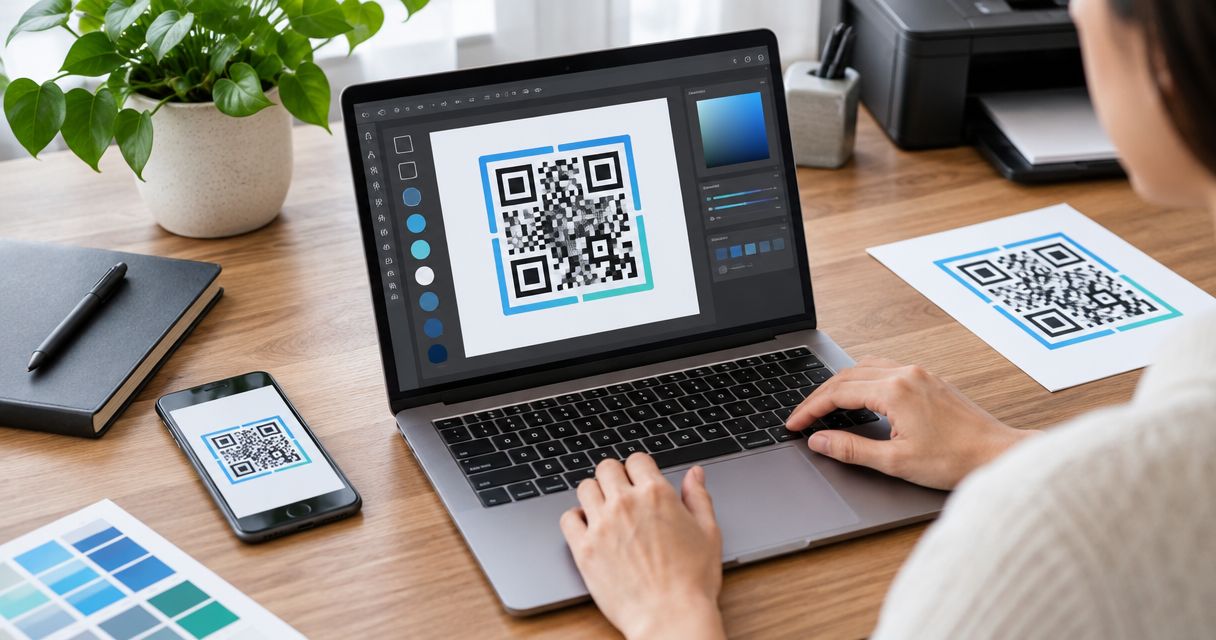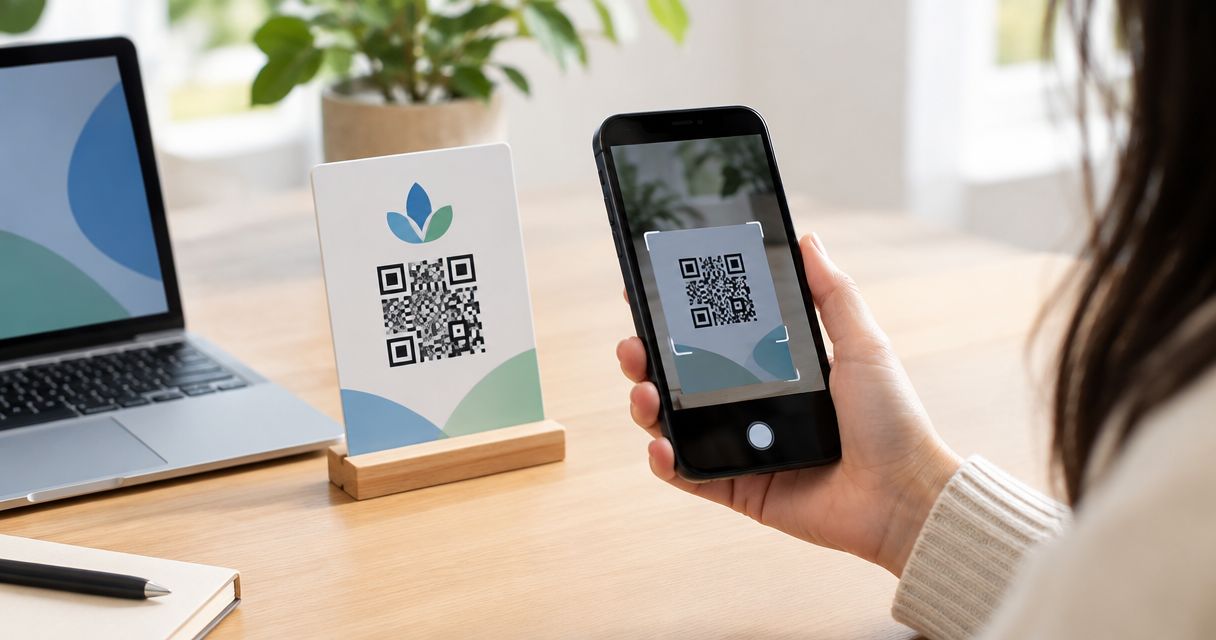
Best overall for image-led branding: Qurbo. Best for designing the surrounding layout: Canva. Best for straightforward color customization: Adobe Express. Best for adding a logo to a conventional code: QRCode Monkey. These are the best custom QR code generators to consider in 2026 when your decision starts with the finished design, not a feature count.
- Qurbo leads the best custom QR code generators for designers turning logos or artwork into the QR itself.
- Canva suits layout work; Adobe Express suits color customization; QRCode Monkey suits conventional codes with logos.
- Qurbo includes one free published QR; Free destination editing lasts one day after publishing.
- Check the exported code in its final placement before approving any printed material.
Why this matters
A small logo pasted into a standard QR code and artwork turned into the QR itself are different design directions. Start there. If you want the code to carry the identity, a color picker alone does not answer the brief.
For a 2026 shortlist, separate appearance from destination control. A code can look right and still send readers to an unfinished page. A destination can work perfectly while the code feels disconnected from the rest of your design.
Qurbo is the best fit here for designers and agencies turning a logo or artwork into the QR itself. Choose the other options when your brief calls for a conventional code, a simple color treatment, or a layout built around it.
What makes the best custom QR code generators?
Judge the output you need, not the longest menu of settings. These criteria explain the recommendations below.
- Image treatment: Does the artwork shape the QR, or does a small logo sit over a conventional pattern? Neither approach fits every brief.
- Layout workflow: Do you need to create a standalone code or place a code inside a wider design? Keep those jobs separate when comparing tools.
- Destination control: Establish whether the printed code needs a changeable destination. Check the actual editing rules before approving the artwork.
- Production checks: Judge the exported code at its intended size, on its intended background. An enlarged editor preview is not a print proof.
- Handoff clarity: Record the destination, account owner, approved artwork, and editing limits. Your client needs a working asset, not just an image file.
Custom QR code generators at a glance
The order reflects the design brief: image-led branding first, followed by layout work, color customization, and a conventional logo overlay. It is not a ranking of scan speed or reliability.
| Generator | Best for | Standout feature | Key limitation |
|---|---|---|---|
| Qurbo | Turning artwork into the QR itself | Logo- and image-led QR creation | Free destination editing ends one day after publishing |
| Canva | Creating the surrounding layout | QR creation inside a design workflow | Building the layout does not establish that the artwork becomes the QR |
| Adobe Express | Straightforward color customization | QR generation with color choices | Color customization is a narrower brief than image-led QR design |
| QRCode Monkey | Adding a logo to a conventional code | Logo placement and code styling | A logo overlay is not the same treatment as artwork becoming the QR |
1. Qurbo: best custom QR generator for image-led branding
Qurbo turns logos and images into scannable, customizable QR codes. The visual difference is the reason to start here: the artwork becomes part of the QR treatment instead of appearing only as a small badge over a standard pattern.
That fits designers and agencies creating branded print and campaign materials. Bring the artwork and a useful destination. Then evaluate the resulting QR as part of the design, not as an unrelated utility added at the end.
Qurbo pros:
- Starts with your logo or image rather than only a conventional code pattern.
- Supports editable destinations, subject to the plan's editing rules.
- Includes one free published QR for creating your first live example.
Qurbo cons:
- Free destination editing is limited to one day after publishing; ongoing editing requires a paid plan.
- One free published QR does not cover a brief requiring multiple published codes.
Best for: Designers and agencies whose brief is “make the QR part of the identity,” rather than “put our logo in the middle.”
For a 2026 client project, settle the destination and editing responsibility before publishing. Do not describe the Free option as unlimited link editing. Scan analytics are also part of the platform, but the visual treatment is the reason for this recommendation.
Verdict: Choose Qurbo for artwork-led QR design.
2. Canva: best custom QR option for the surrounding layout
Canva lets you generate a QR code within a design workflow. Its role in this shortlist is the surrounding composition: the card, poster, invitation, or campaign graphic that contains the code.
Choose this approach when your central task is arranging the whole piece. You still need to judge the code separately from the typography, illustrations, and other elements around it.
Canva pros:
- Keeps QR placement close to the rest of the design work.
- Lets you judge the code alongside the message and call to action.
- Suits a brief where a conventional QR is one element in a larger composition.
Canva cons:
- A finished layout does not demonstrate that the QR works in its final printed placement.
- Generating a code within a design is not the same brief as turning the brand's artwork into the code itself.
Best for: Designers who need to compose the entire material and do not require the QR pattern itself to carry the artwork.
Keep the invitation to scan close enough to make the purpose clear. “Read the instructions” gives the reader a reason to act; an unexplained code does not describe what comes next.
Verdict: Choose Canva when the layout is the main job.
3. Adobe Express: best custom QR option for color customization
Adobe Express provides QR generation with color customization. It fits a straightforward request: create a recognizable QR code and adjust its color treatment to suit the material.
That is a narrower task than turning an illustration into a QR. Narrow is useful when it matches the brief. A standard-looking code with a considered color choice can be the right answer for a restrained layout.
Adobe Express pros:
- Addresses a clear task: generating a code for a destination.
- Provides color choices for coordinating the code with the design.
- Suits materials that do not need an image-led QR treatment.
Adobe Express cons:
- Color coordination alone does not make the artwork part of the QR.
- A color that matches the brand still needs sufficient contrast against the background.
Best for: Designers who want a conventional QR with a deliberate color treatment, rather than a code built around a logo or illustration.
Avoid treating an approved brand color as automatic approval for a QR. Evaluate the foreground and background together. A pale code on a pale surface needs a different treatment, even when both colors belong to the same identity system.
Verdict: Choose Adobe Express for a focused color-customization brief.
4. QRCode Monkey: best custom QR option for a logo overlay
QRCode Monkey supports QR styling and adding a logo to the code. This is the familiar route: keep the code recognizable as a conventional QR and introduce a brand mark within it.
Choose it when the client explicitly wants that treatment. Do not present a centered logo as the same result as artwork shaping the QR itself. The distinction belongs in the creative review before anyone approves a direction.
QRCode Monkey pros:
- Supports a conventional QR treatment with an added logo.
- Offers styling choices for the code's appearance.
- Gives you a direct option for briefs that specify a centered brand mark.
QRCode Monkey cons:
- A small logo leaves much of the visual identity outside the code pattern.
- Logo placement and styling still need checks in the exported, final-size design.
Best for: Designers whose approved direction is a standard QR with a visible logo overlay.
Show the client the treatment in context. A logo that reads clearly in a large preview can become visually insignificant when the code is reduced inside a busy layout. Review the full composition, then inspect the code on its own.
Verdict: Choose QRCode Monkey when a logo overlay is the intended result.
Artwork, overlay, or layout: choose the right job
Before opening a generator, write the brief in one sentence. Use Artwork first when the QR should carry the visual identity. Use Logo overlay when the approved direction is a conventional code with a small mark. Use Layout first when the main task is arranging the surrounding material.
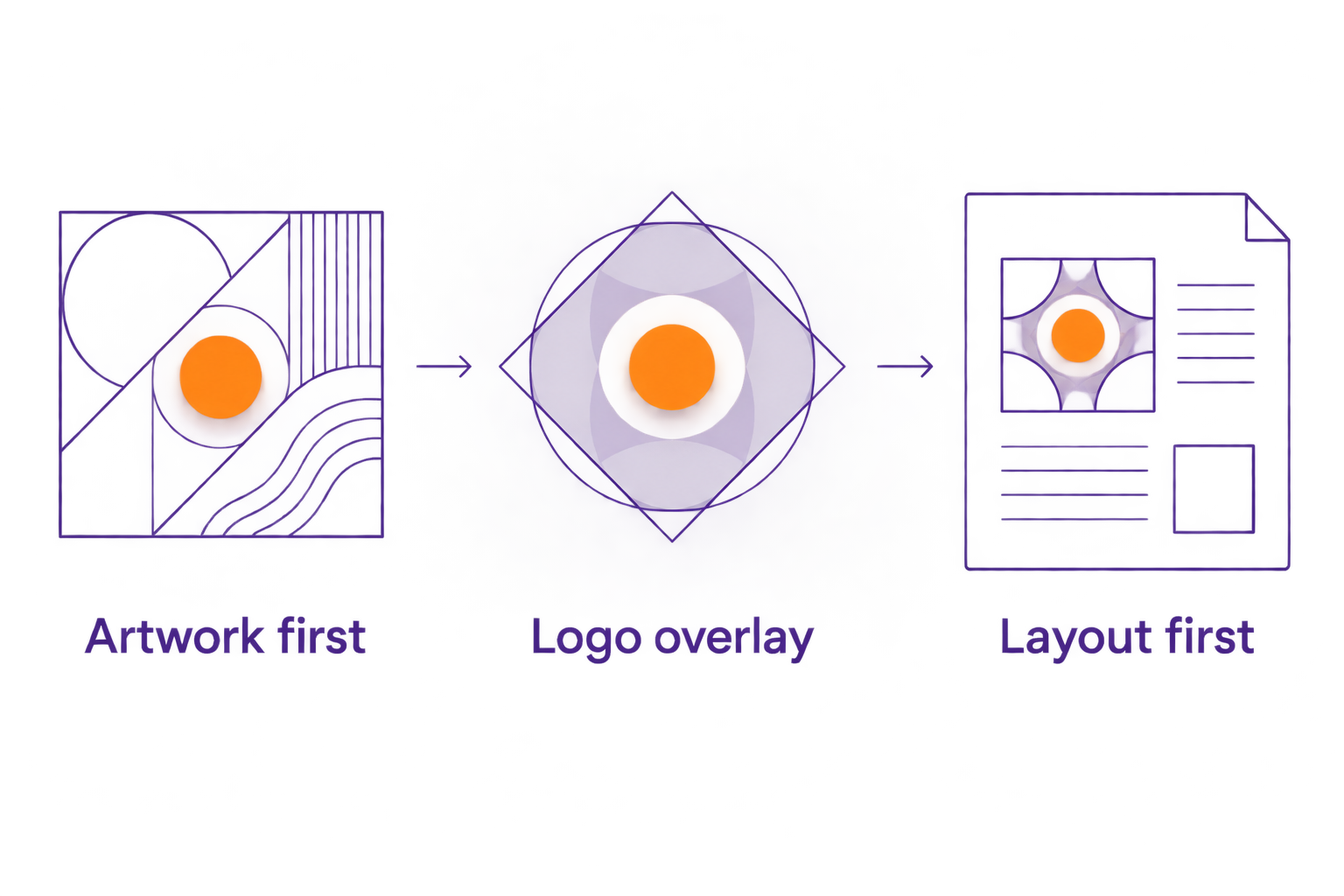
A color change can support any of those directions, but it does not replace the decision. This is the most useful distinction to take into a 2026 creative review: are you designing the code, decorating the code, or designing around it?
Create your first branded QR without guessing
Start with the destination
Choose the exact page the reader should reach. Open it on a phone and check that its content matches the promise printed beside the code. Do not send someone to a general homepage when the material promises a specific instruction or campaign.
Bring the artwork
For an image-led direction, create your first QR with a logo or image you have permission to use. Compare the result with the original brief. Keep the test focused on whether the visual treatment belongs in the design.
Check the final placement
Export the asset and place it in the actual layout. Preserve a clear area around the code. Standard QR codes use a quiet zone at least 4 modules wide on every side; a module is one small square in the underlying grid. Do not confuse that measurement with a fixed physical margin.
Check the code at the intended output size. Scan the exported artwork and a physical proof before approving print. For folded, curved, or reflective materials, test the actual placement rather than relying only on a flat screen preview.
Record the handoff
Save the approved file, destination, account owner, and editing rules together. For Qurbo, record 1 free published QR and a Free destination-editing window of 1 day after publishing. Arrange ongoing editing before handoff if the project requires later destination changes.
Turn your artwork into a QR
Create your first free published QR. Check the destination and final placement before printing.
How these recommendations are ranked
The ranking follows the criteria above: image treatment, layout workflow, destination control, production checks, and handoff clarity. The first recommendation matches the audience's central job—creating a branded visual asset. The remaining recommendations cover distinct alternatives rather than competing for the same use case.
This 2026 guide does not assign scan-performance scores. Tool features describe what you can create; they do not prove that a particular export works on your chosen material. Your production check remains a separate approval step.
Which custom QR code generator should you choose?
Choose Qurbo when your logo or artwork should become the QR itself. Start with the free published QR and evaluate the result in the material you are designing. Confirm the destination within the Free editing window.
Choose Canva when the surrounding layout is the main task. Choose Adobe Express when color customization answers the brief. Choose QRCode Monkey when the client wants a conventional code with a logo overlay.
For your 2026 project, do not buy more workflow than the brief needs. First approve the visual direction. Then approve the destination, exported asset, and final placement.
FAQ
What's the best custom QR code generator for designers?
Qurbo is the best fit in this shortlist for designers turning logos or artwork into the QR itself. Choose a layout-focused option instead when the code is only a small element in a larger composition.
Can I create a free branded QR with Qurbo?
Yes. Qurbo includes one free published QR. Free destination editing lasts one day after publishing; ongoing destination editing requires a paid plan.
Is turning a logo into a QR different from adding a logo?
Yes. An image-led treatment makes the artwork part of the QR's appearance, while a logo overlay places a mark over a conventional code. Choose the treatment before comparing generators.
Is Canva better than a dedicated custom QR generator?
Canva is the better fit here when your main task is designing the surrounding layout. An image-led generator better matches a brief that asks the QR itself to carry the artwork.
Can I change the destination after printing?
A code with an editable destination lets you change where the existing code sends readers, subject to the service's rules. Qurbo allows Free destination editing for one day after publishing and ongoing editing on paid plans.
How much clear space does a QR code need?
Standard QR codes use a quiet zone at least four modules wide on every side. A module is one square in the code grid, so the physical margin changes with the printed module size.
How do I check a custom QR before printing?
Scan the exported code at its intended size and check a physical proof in the final placement. Confirm both successful scanning and the correct destination; a working editor preview is not the final approval.
One last thing
Write the sentence beside the QR before finalizing the code. “View the care instructions” sets a different expectation from “See the collection.” That small piece of copy helps you choose the destination and exposes a mismatch before the artwork reaches print.